User Guide

Complete Guide

Apex Vision AI User Guide

Master every feature and unlock the full potential of your AI study companion

🔍

Extension Pop-Up

The quickest way to get instant AI-powered answers. Click the extension icon and let the magic happen.

1

Activation

Click the Apex Vision AI icon in your browser toolbar to open the pop-up

2

Capture The Question

Make sure your question is visible in your browser window

3

AI Magic

Click ‘Get Answer’ and our AI immediately processes your question

4

Solution Delivery

Receive a concise, AI-generated solution within moments

Pro Tip: Ensure your question is clearly visible in the browser window for accurate AI processing and responses.
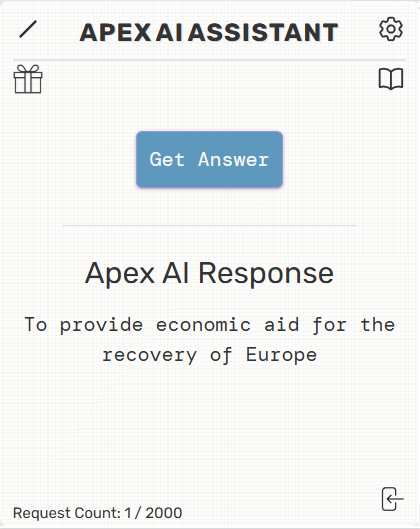
Instant Homework Answers from pop up chrome extension
🛠️

Toolbar

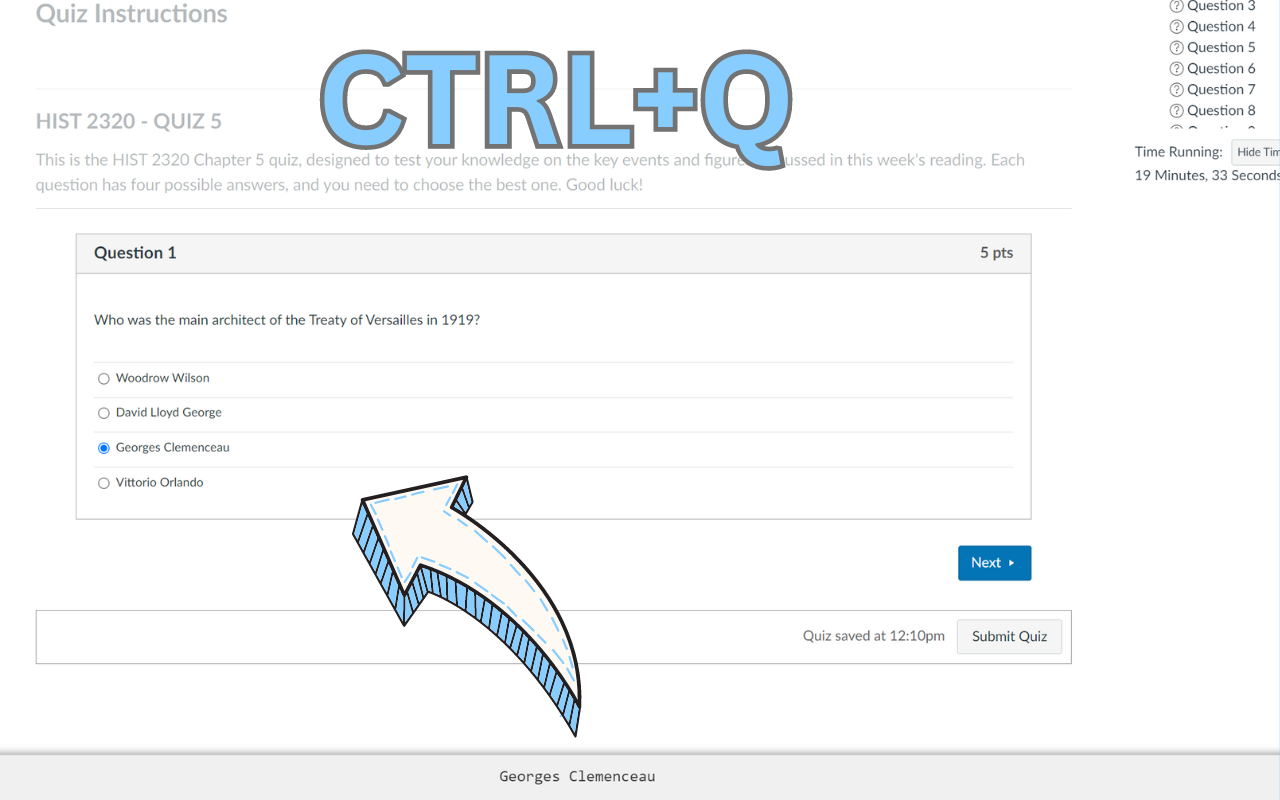
Instant homework answers using the toolbar and keybind CTRL+Q to get instant answers

Access AI assistance without leaving your current page. The toolbar provides seamless, on-demand help.

1

Installation

Ensure the toolbar is active in your browser. Enable/Disable in extension settings

2

Access on Demand

Navigate to any webpage where you need assistance

3

Quick Activation

Press Ctrl+Q (Windows) or Cmd+Q (Mac) to activate

4

Instant Assistance

AI solutions appear directly in your toolbar

Hide Toolbar: Press Ctrl+Shift+Y to quickly hide/show the toolbar
📚

Study Recommendations

Get personalized study tips and resources tailored to your specific questions and learning needs.

1

Get Your Answer

Use the pop-up to submit your homework question

2

View the Answer

Notice the book icon in the top right corner of the pop-up

3

Click the Book Icon

Your gateway to customized study recommendations

4

Discover Tailored Advice

AI compiles tips, resources, and suggestions to enhance your understanding

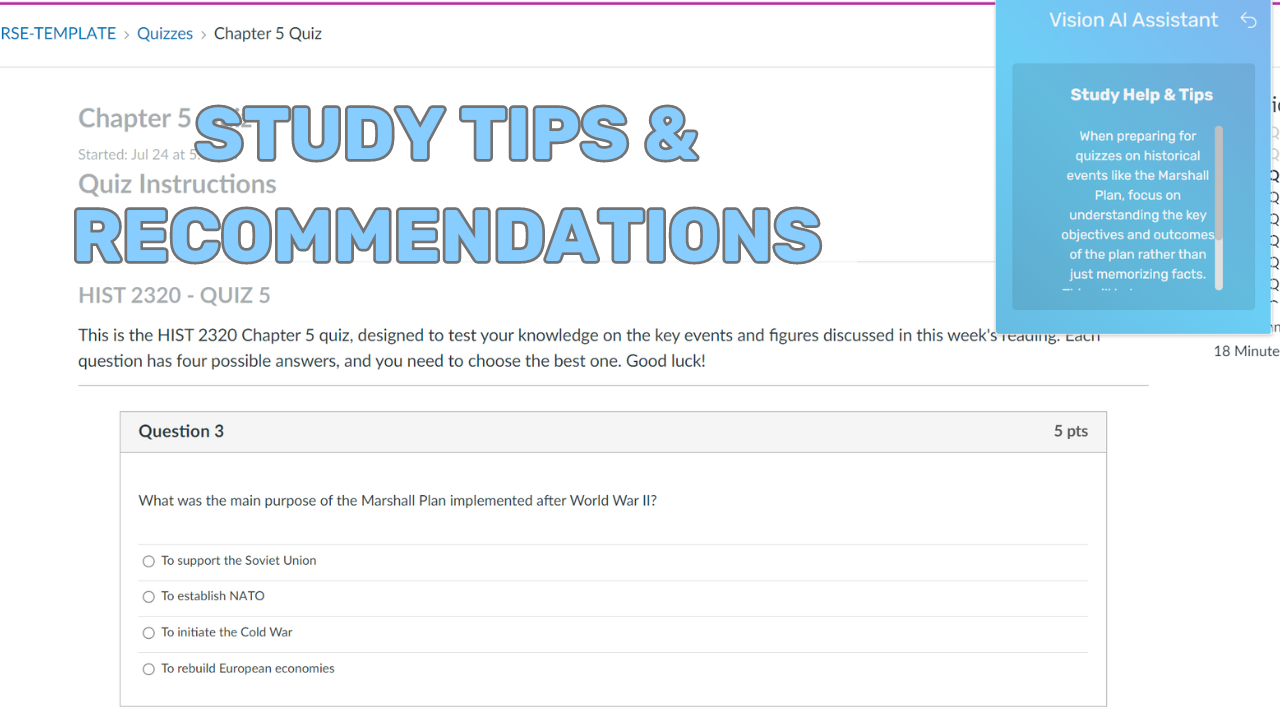
AI Study Tips & Recommendations
🖥️

On-Screen Buttons

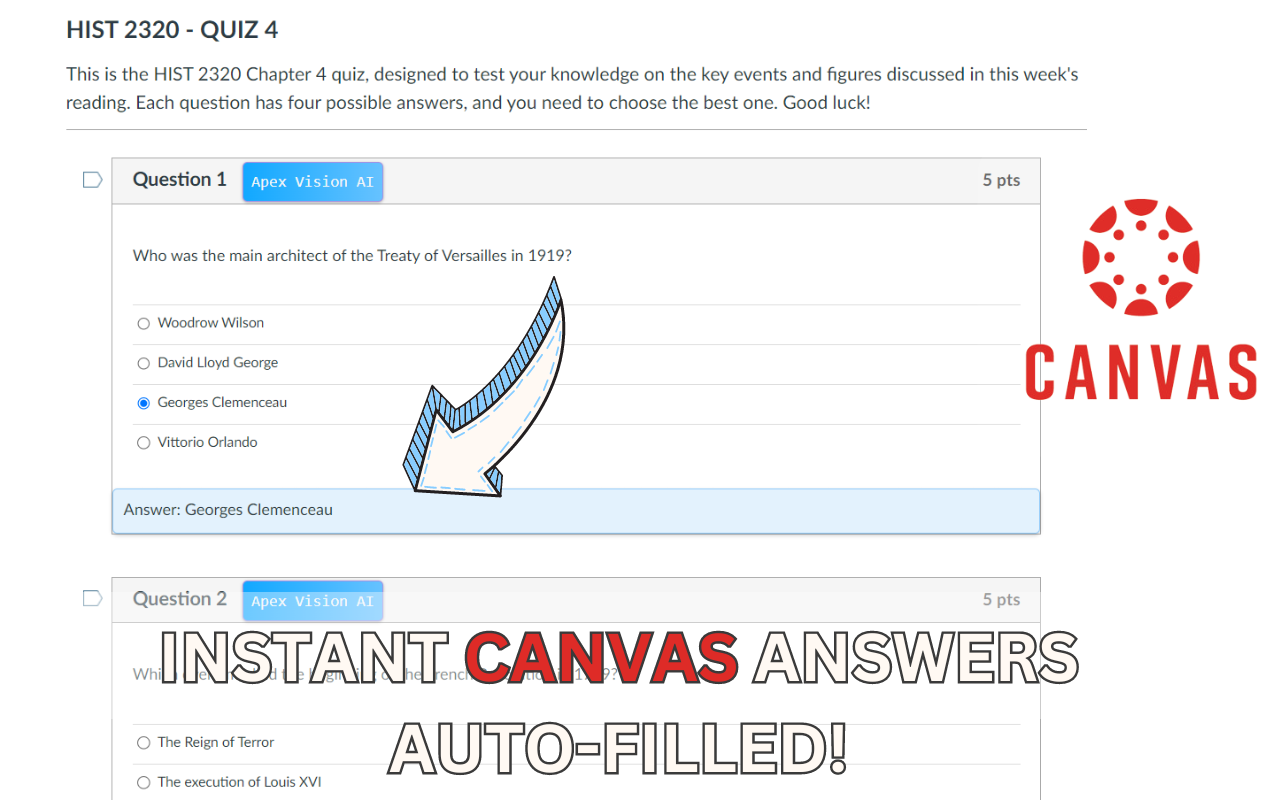
Instant Canvas Test & Quiz Answers

Convenient buttons appear directly on Canvas quizzes and tests for instant AI assistance.

1

Enable Feature

Ensure On-Screen Buttons are enabled in extension settings

2

Navigate to Canvas

Open any Canvas Quiz or Test

3

Get Answer

Click the Get Answer Button or press Ctrl+Q

4

Get Study Tip

Click Get Study Tip for instant learning guidance

Stealth Mode: Press Ctrl+Shift+X to hide/unhide buttons

Note: Works best with multiple-choice questions. Mastermind Subscription users get access to AI models trained for complex questions.

⚙️

Settings & Customization

Customize Apex Vision AI to match your preferences and workflow. Control visibility, answer style, and more.

Hide Toolbar

Show or hide the toolbar for a cleaner browser interface

Hide On-Screen Buttons

Toggle button visibility for stealth mode

Hide Toggle Button

Show or hide the Side Panel toggle button (refresh tab after toggling)

Hide Highlight Pop-Up

Disable the “Get Answer” pop-up when highlighting text

Freeform Mode

Get detailed, elaborate answers for in-depth understanding

Restrictive Mode

Straight-to-the-point responses for quick, clear answers

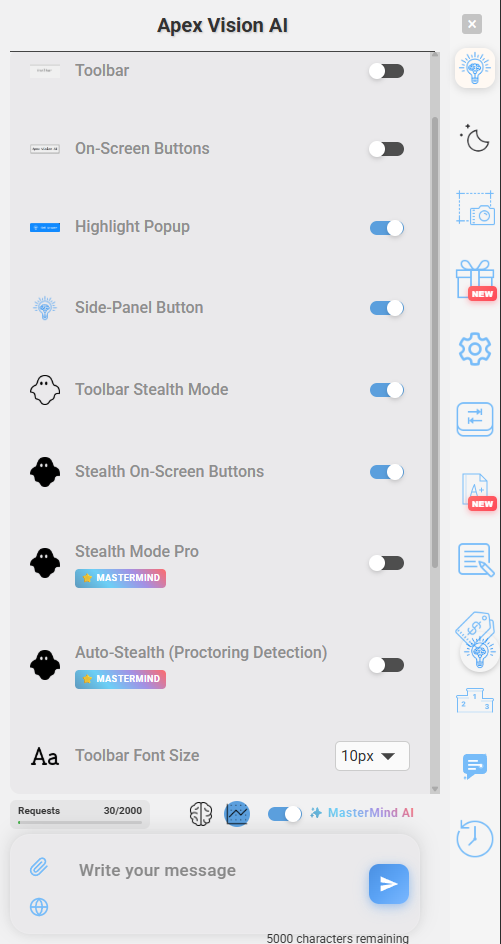
Apex Vision AI Settings
🔄

Auto-Fill

AI Autofills Multiple Choice Homework & test answers for you

Let AI automatically fill in answers for Canvas assignments. Save time and boost accuracy.

1

Enable Autofill

Turn on Autofill from extension settings

2

Navigate to Canvas

Open any Canvas assignment (currently Canvas-only)

3

Activate Auto-Fill

Click Get Answer Button or press Ctrl+Q

4

Watch the Magic

AI accurately fills in the best answers

5

Review & Submit

Double-check answers and submit with confidence

Note: Works best with multiple-choice questions. Mastermind Subscription users get AI models trained for complex questions.

📋

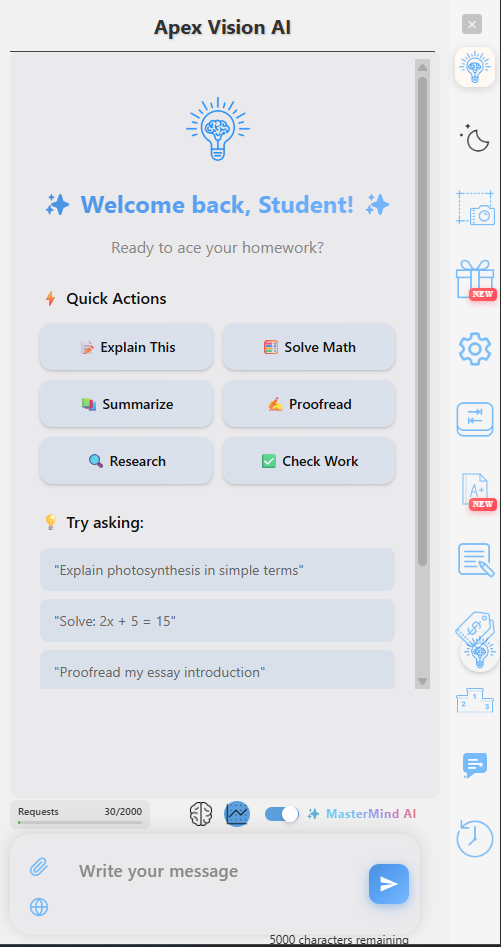
Side Panel

A powerful, always-accessible AI assistant that lives in your browser’s side panel. Perfect for longer, in-depth answers and image analysis.

Dark/Light Mode

Switch between themes for comfortable viewing in any environment

MasterMind AI Toggle

Premium Feature: Access faster, more powerful AI for complex queries

In-Depth Answers

Get longer, more detailed explanations using the seamless side panel interface

Image Analysis

Snap a photo of any problem and get instant solutions

Image Capture: Press Ctrl+Shift+Z to capture and analyze images

More Features Coming Soon! Stay tuned for exciting updates to the side panel.

AI Essay Writer & Image Solver