Apex Vision AI User Guide
Learn what each tool does, when to use it, and how to get the help you need. Choose a section below and follow the steps.
Need to install Apex or sign in? Follow the Getting Started guide first.
Extension Pop-Up
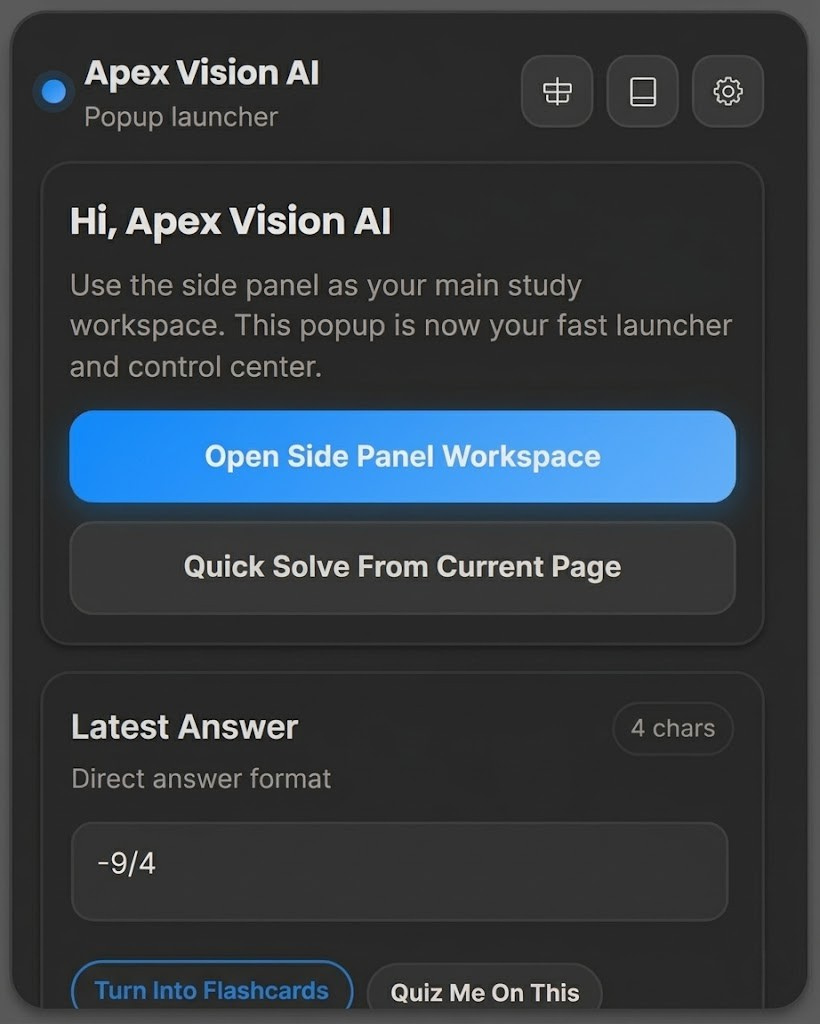
The pop-up is the small window that opens when you click the Apex icon next to Chrome’s address bar. Use it to get help with a question on your screen.
- Open your question
Make the full question and any answer choices visible on the webpage.
- Click the Apex icon
Choose Quick Solve From Current Page. Apex reads the visible page and works on the question.
- Read the explanation
Review the answer in the pop-up. For a longer conversation, choose Open Side Panel.
Side Panel Chat
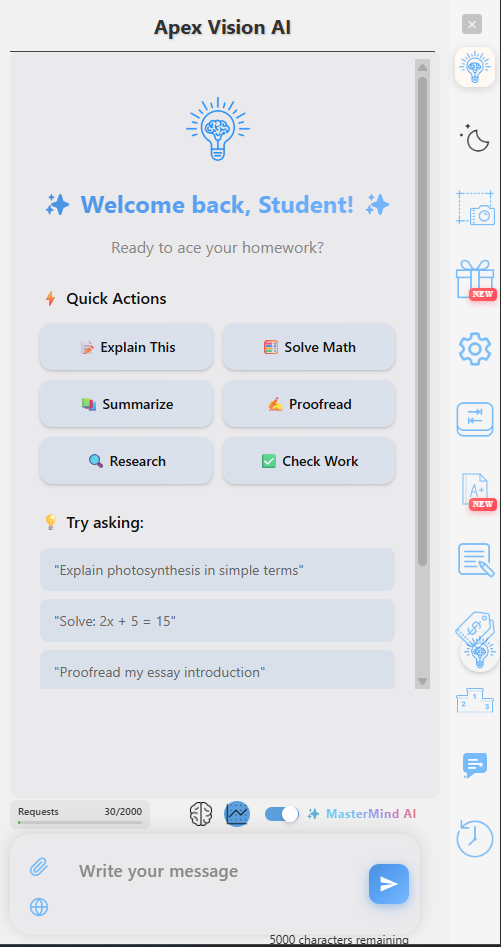
The Side Panel is your chat area beside the webpage. Use it for detailed explanations, follow-up questions, and help with images.
- Open the Side Panel
Click the Apex icon, then Open Side Panel.
- Add your question
Type or paste it into the message box and send it. For a diagram or a problem you can’t copy, use Image Capture.
- Keep the conversation going
Ask follow-ups in the same chat. You can request smaller steps, a different example, or a practice question.
The Side Panel also contains Apex AI Agent, Study Tools, Voice Tutor, and Settings.
Apex AI Agent
An autonomous agent for your coursework. It fills homework answers and turns readings into study notes.
- Open AI Agent
Open your coursework in Chrome, then select AI Agent in the Apex Side Panel.
- Choose a task and start
Pick Homework or Study notes, add any instructions, choose a course, and start.
- Review your saved work
Apex fills answers or saves notes to your course. Pause anytime and revisit results under Saved work.
More options
Choose Explain without filling for an explanation only. Use Copy or Download to keep your results.
Out of tasks? Eligible Mastermind users can exchange 100 requests for 1 extra task. Unused extra tasks carry over.
Toolbar
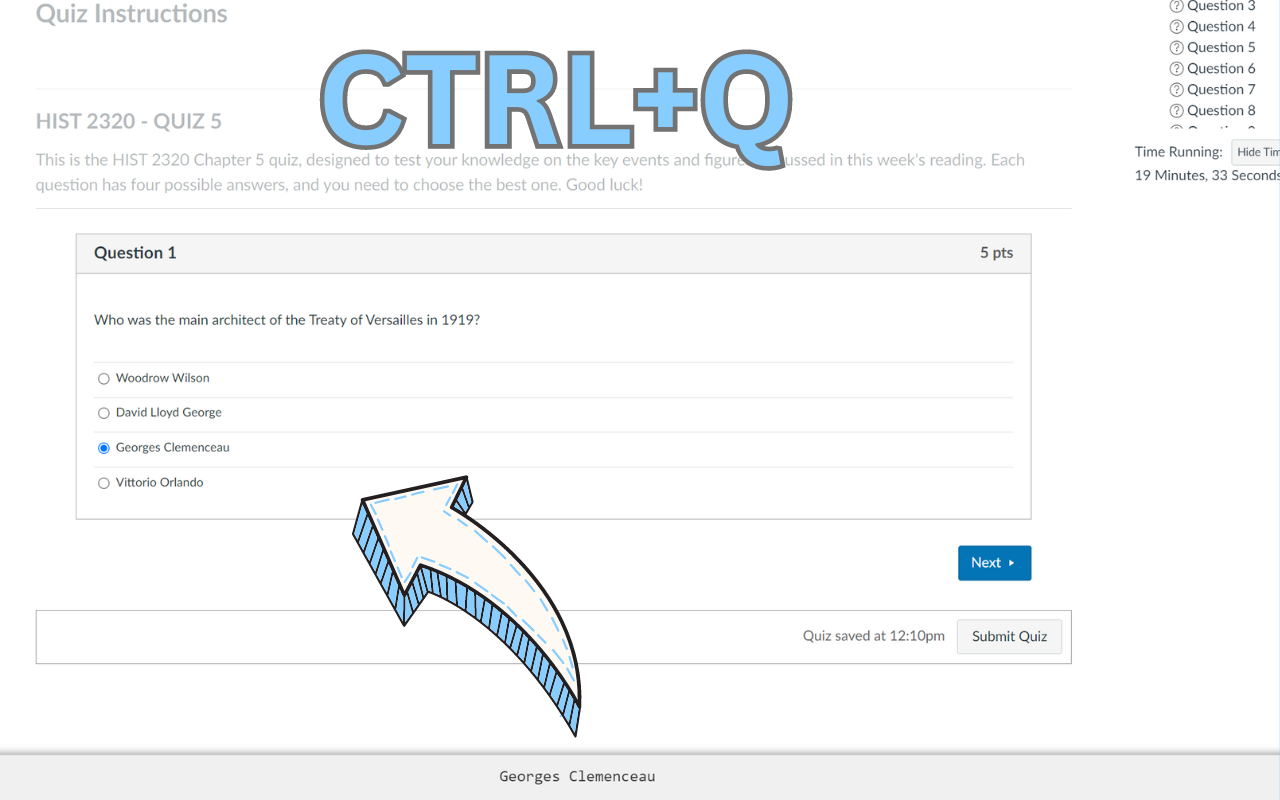
The toolbar is a small bar that can display Apex’s answer on your webpage. Use it when you want to keep your work in view.
- Show the toolbar
Open Settings and turn on Toolbar.
- Get help with the page
Run Quick Solve from the Apex pop-up. Its default Windows shortcut is Ctrl + Q.
- Make it comfortable to read
In Settings, adjust the text size, bar height, or opacity (how faint the text looks). You can hide the toolbar whenever you want.
On-Screen Buttons
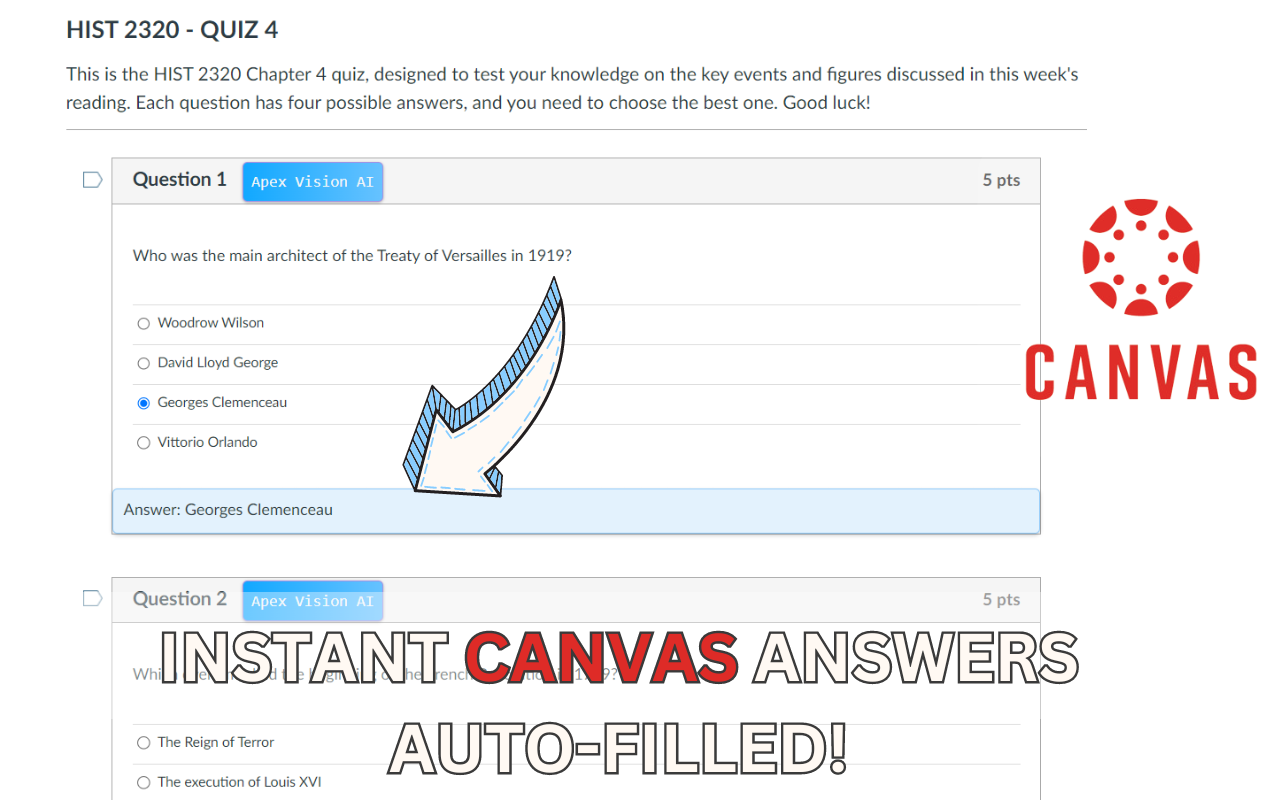
On supported Canvas and Blackboard pages, Apex can show help buttons beside a question.
- Turn the buttons on
Open Settings and enable On-Screen Buttons.
- Open a practice question
Look for Apex’s Get Answer and Get Study Tip buttons beside it.
- Choose the help you want
Select Get Answer for an answer or Get Study Tip for help understanding the topic.
Study Tools
Open the Side Panel and select Study Tools. Choose what you want to make, add a topic or your course material, and follow the tool’s prompts.
Turn notes into a summary with key ideas and terms. Useful for reviewing a chapter.
Create question-and-answer cards. Useful for remembering definitions and facts.
Create practice questions from your material. Choose the difficulty and check the explanations.
Build an outline or draft from your topic. Review, revise, and add your own ideas.
Work through a problem with hints and practice. Follow the steps below ↓

Guided Study
Guided Study helps you work through a problem with hints, explanations, and practice. It is in beta and requires you to sign in.
- Open Guided Study
In the Side Panel, select Study Tools → Guided Study. Add the question you’re working on.
- Show what you’ve tried
At Your attempt, enter your working or explain where you’re stuck. It doesn’t need to be correct.
- Choose your next step
Use I’m stuck for a hint or Just explain it for an explanation. You can ask for more help as you go.
- Check your understanding
Use Practice This for a similar question. Your topic mastery, or progress on that topic, updates after Apex checks your attempt.
How do I add my course notes?
Create or select a course to keep its notes and practice together. Add up to five files: PDF, DOCX, PPTX, TXT, or MD, up to 20 MB each.
Apex can use this material when giving hints. You can also generate a practice exam from the topics you’ve been studying.
Voice Tutor
Talk through a question out loud and hear the explanation. Voice Tutor uses your microphone and snapshots of the tab you start it on. Sign in before starting.
- Open the right webpage
Bring up the question or reading you want help with. Select Voice Tutor in the Side Panel.
- Start the session
Choose Start 10-minute Voice Tutor. Allow microphone access when Chrome asks. The panel shows your available sessions.
- Ask your question
Speak normally, then ask follow-ups as needed. For example: “Talk me through this problem one step at a time.”
- Pause or finish when you need to
Mute mic stops microphone input; tab snapshots continue. Use Pause to pause the session, or Stop when you’re finished.
For more detail, see the Voice Tutor guide. You can adjust its tutoring style below.
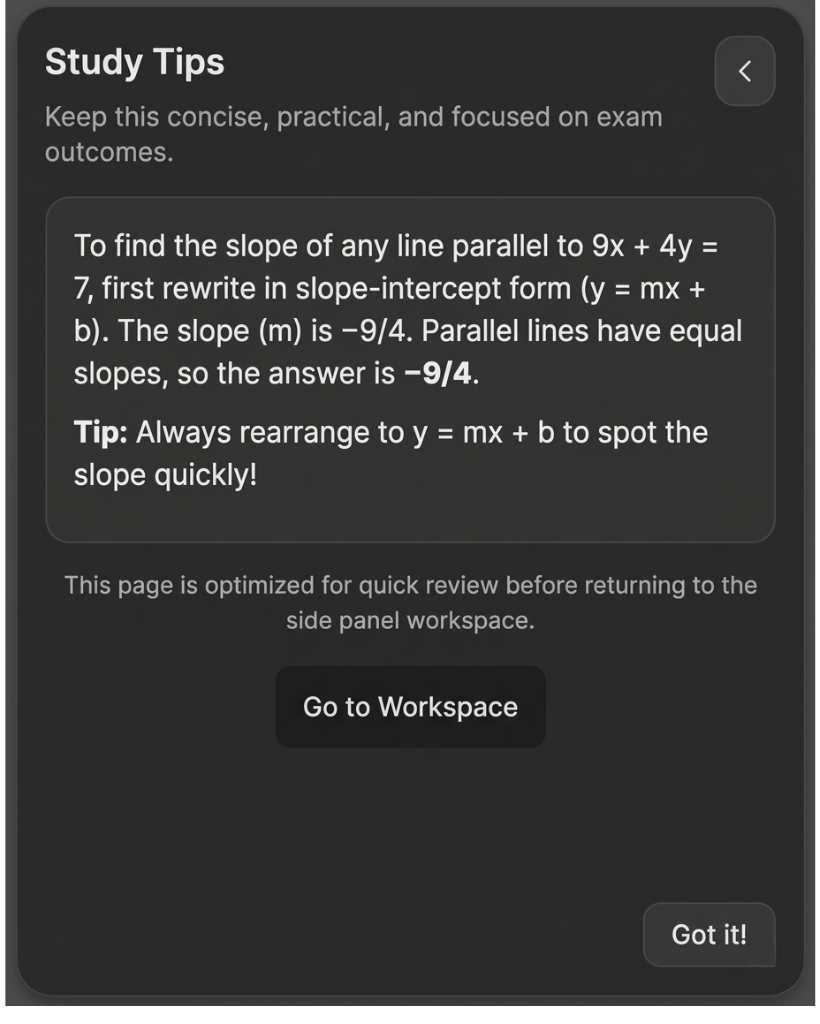
Study Tips
Study tips help you review the idea behind a question and decide what to practice next.
- Get help with a question
Use Quick Solve or an on-screen Get Answer button.
- Open the study tip
Choose Get Study Tip when it appears, or open the study recommendations from the pop-up’s book icon.
- Try the advice
Review the suggested topic, then ask the Side Panel for an example or a practice question.
Settings & Answer Style
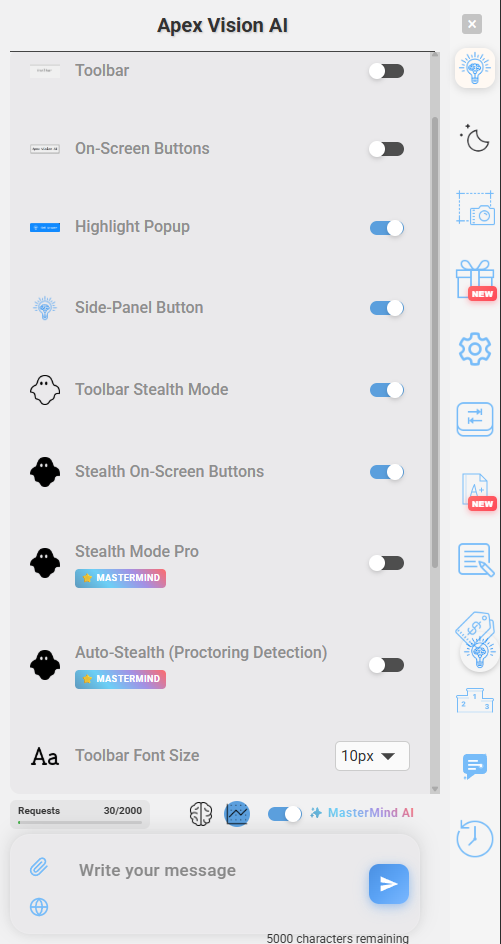
Open Settings in the Side Panel to change how Apex looks and which controls appear on your webpages.
Show the controls you use
- Toolbar — show or hide the answer bar.
- On-Screen Buttons — show or hide help buttons on supported questions.
- Highlight Popup — show Get Answer when you select text.
- Side-Panel Button — show or hide the button that opens chat from a webpage.
Make answers easier to read
Adjust the toolbar’s text size, height, and text opacity. In Side Panel chat, choose Study for organized explanations or Chat for a conversational reply.
What are the extra display options for?
If your plan includes advanced visibility controls, use them to choose which Apex elements appear on screen. Start with the regular show/hide settings if that’s all you need.
Choosing How Much Help You Get
Guided Study and Voice Tutor share a tutoring preference. Choose the amount of guidance that suits your task, and change it whenever you need to.
- Adaptive — Apex adjusts its help as you work. A good starting point if you’re unsure.
- Answers first — see the answer, followed by the reasoning. Useful for checking your work.
- Balanced — get a mix of answers and guidance.
- Teach me — work through the reasoning with more guidance.
Auto-Fill
Auto-fill can select an answer on supported multiple-choice questions in Canvas and Blackboard. Use it for practice where AI help is allowed.
- Enable Autofill
Turn on Autofill in Settings.
- Get an answer
Open a supported practice question and use Get Answer or Quick Solve.
- Review the selection
Check which answer Apex selected and read the explanation. Correct it if needed before continuing.

Keyboard Shortcuts
Use these if you prefer the keyboard. You can also open the tools with Apex’s buttons.
Quick Solve on Windows: the default is Ctrl + Q. Change it in Settings → Quick Solve Shortcut.
| Action | Windows | Mac |
|---|---|---|
| Open Apex pop-up | Ctrl + Shift + E | ⌘ + Shift + E |
| Show or hide toolbar | Ctrl + Shift + Y | ⌘ + Shift + Y |
| Show or hide page buttons | Ctrl + Shift + X | ⌘ + Shift + X |
| Capture an image | Ctrl + Shift + Z | ⌘ + Shift + Z |
Scroll sideways in the table to see all shortcuts.
chrome://extensions/shortcuts into Chrome’s address bar. Chrome may use different keys if a default is already taken.Still need help?
Email support@apexvision.ai with the tool you’re using and the step you’re stuck on. For account and plan questions, visit the FAQ.
Use Apex for permitted practice and study. Check important answers against your course material, and follow your instructor’s rules. Do not use Apex during proctored assessments or to bypass monitoring.