Keep the assignment open and get help with the part you do not understand. Apex Vision AI is an AI homework extension for Chrome that brings question capture, explanations and tutoring beside your coursework. It supports text, answer choices, equations and clear screenshots of diagrams.
Start with 30 free requests, plus a refill every 12 hours. No card required. Want to try a question before installing? Use the web AI homework helper. Comparing several products? Read our AI homework extension comparison.
How to use the homework extension
- Install and sign in. Open the official Chrome Web Store listing, choose Add to Chrome, review the permissions and create or sign in to your Apex account. Pin the Apex icon for easier access.
- Open the complete question. Bring the instructions, answer choices and any graph into view. Click the Apex icon and choose Quick Solve From Current Page. For a question that is difficult to read or copy, use Image Capture instead.
- Read and question the explanation. Choose Open Side Panel for follow-ups such as “Why does that formula apply?” or “Explain the second step more simply.” Guided Study can help you work through a problem with hints.
- Check it, then try again yourself. Compare the working with your lesson, check units and calculations, and try a similar problem without assistance. AI can misread a diagram or make a reasoning error.
For setup help, see getting started and the complete extension user guide.
See the extension on screen
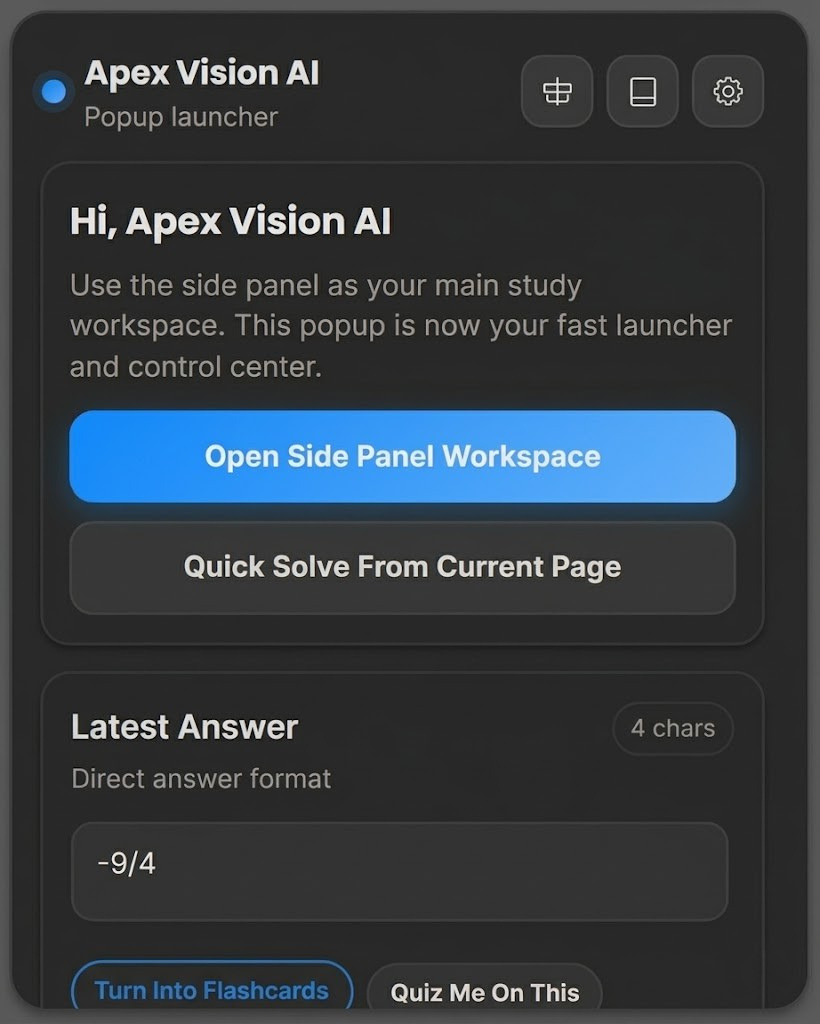
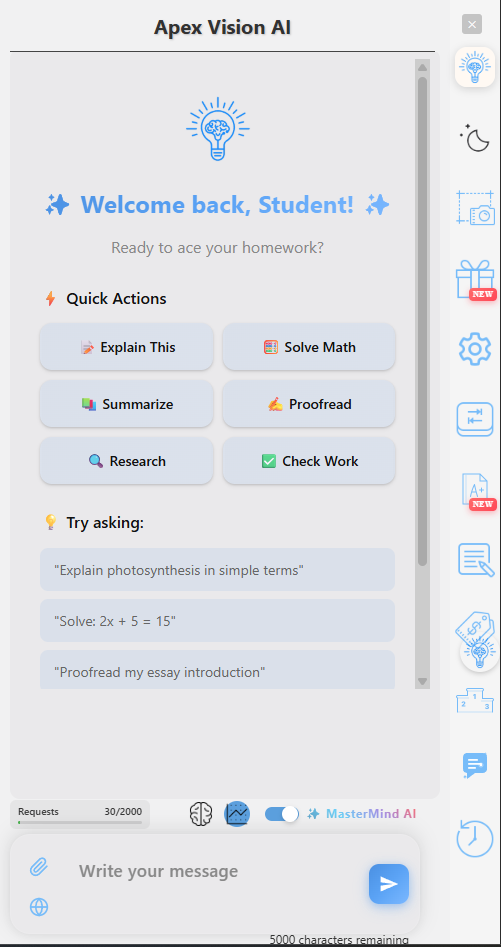
Choose the right way to ask
| What you are working on | Start here | What to include |
|---|---|---|
| A visible question on a supported course page | Quick Solve, the on-page help button or highlighted text | The complete wording and every answer choice |
| A graph, equation, scan or image you cannot copy | Image Capture | Legible symbols, axis labels, units and instructions |
| A multi-step problem or an explanation you want to discuss | Side Panel Chat | Your attempt and the step that is confusing |
| A concept you want to learn with hints | Guided Study | Your current understanding and preferred difficulty |
| A topic you would rather discuss aloud | Voice Tutor | Microphone permission and a clear question; session availability depends on your plan |
Use course workspaces to add relevant notes or PDFs where available. After the explanation, study tools can help you make flashcards, practice questions and study guides. Lecture recording and transcription are also available; review current plan limits before starting a recording.
Where does it work?
Apex Vision AI is designed for supported browser pages on Canvas, Blackboard, Moodle and Top Hat, as well as other coursework websites. Compatibility depends on the page, its permissions and the question format. A school-managed browser can restrict extension installation.
If page capture misses something, try a clear screenshot or paste the question into the side panel. A Chrome extension cannot run inside a native mobile app; use the separate iOS app or Android app for mobile study help.
Example: turn a quick answer into a useful explanation
Practice question: A $60 item is discounted by 25%. What is its sale price?
The discount is $60 × 0.25 = $15. Subtract the discount: $60 − $15 = $45. Check by multiplying $60 × 0.75 = $45.
A useful follow-up: “Why do we multiply by 0.75, and how would a 25% increase differ?” This original worked example illustrates what to check in an explanation; it is not a measured accuracy result from the extension.
Free access and paid plans
Start with 30 free requests, plus a refill every 12 hours. No card required. The extension is free to install; a free allowance is different from unlimited usage.
| Monthly plan | Price in USD | Included requests |
|---|---|---|
| Knowledge Kickstart | $7.99 / month | 500 / month |
| Savvy Scholar | $14.99 / month | 1,000 / month |
| Mastermind | $19.99 / month | 2,000 / month |
Voice sessions, recording and agent tasks have their own plan allowances. Apex AI Agent is a Mastermind feature for working through supported coursework tasks or making notes, with work saved to your course. Review its work before submitting anything. Check current pricing and feature limits before subscribing.
Start with 30 free requests, plus a refill every 12 hours. No card required.
When an answer or capture looks wrong
- Check the input first. A missing “not,” exponent, answer choice or graph label can change the whole question. Recapture the complete problem at a readable size.
- Ask for the reasoning. Request the formula, assumptions and intermediate steps. Verify factual claims and citations against your course material or the original source.
- Refresh the course page. After installation or an extension update, reload the tab. Check that Chrome allows the extension on that website.
- Check your account and connection. Sign in, review the remaining request allowance and retry a simple practice question. Contact support if the issue continues.
Use AI where your instructor permits it. Follow the academic integrity policy; do not use the extension during prohibited or proctored assessments. For data collection, storage and deletion information, read our Privacy Policy and the Chrome Web Store privacy disclosures before sharing course material.
AI homework extension questions
Is the Apex Vision AI homework extension free?
Yes, it is free to install. Start with 30 free requests, plus a refill every 12 hours. No card required. Paid plans add monthly requests and feature allowances; the free tier is not unlimited.
How do I install the AI homework extension?
Open the official Apex Vision AI listing in the Chrome Web Store, select Add to Chrome, review the requested permissions and sign in to your Apex account. Refresh your coursework tab, then click the Apex icon to open the pop-up or side panel.
Can it read screenshots, diagrams and math questions?
Yes. Use Image Capture for a visible problem, including diagrams, equations and answer choices. Include the entire question and clear labels. Image quality and question complexity affect the result, so check the interpretation and working.
Does it work on Canvas, Blackboard and Moodle?
Apex supports coursework help on supported pages within Canvas, Blackboard, Moodle, Top Hat and other websites. Page layouts and school restrictions can affect compatibility. If on-page capture fails, try a screenshot or paste the question into the side panel.
Do I need to give Apex my school password?
You sign in to Apex with your Apex account. Do not paste your school password, login codes or other sensitive information into a question or upload. Review the Chrome Web Store permissions and Apex Privacy Policy for details about the information the service handles.
Does a Chrome Web Store rating show answer accuracy?
No. Store ratings reflect reviewers' experiences; they are not a controlled accuracy test. AI can make mistakes even when an explanation sounds confident. Check calculations, sources and assumptions against your course material.
Official product information
This guide is written by the team that builds Apex Vision AI. Product instructions and plan information were reviewed October 26, 2026.